
The BidVision beta has wrapped up.
Your bid sheets stay on your device.Keep me posted
The beta has wrapped up and there's nothing to download right now. Leave your details and I'll write if there's ever something new worth trying.
Enter your access code
Welcome back
Enter your email and access code to unlock downloads.
You're in.
Pick the device you'll run BidVision on.
On your computer
Click the Apple menu () in the top-left corner of your screen, then About This Mac.
- If it says M1, M2, M3, or M4 → choose Apple Silicon
- If it says Intel (or doesn't mention a chip) → choose Intel
Most Macs from 2020 onward are Apple Silicon. If yours is older than that, it's almost certainly Intel.
If you're unsure, choose amd64. It's the right one for almost every laptop, desktop, and Chromebook — anything with an Intel or AMD chip.
Choose arm64 only if you have an ARM device — for example a Lenovo Duet or another ARM-based Chromebook.
To be sure, open a terminal (on a Chromebook, the Linux terminal) and run uname -m: x86_64 means amd64; aarch64 means arm64.
On your phone or tablet
iOS runs through Apple’s free TestFlight app. Tap the button above on your iPhone or iPad to join — no invite to wait for.
Opening the link on a different device installs BidVision there, not on your iPad — so tap it on the device you actually want it on. Full step-by-step is in the install guide below.
macOS
BidVision is signed and notarized by Apple, so it opens like a normal app — no scary warnings.
- Unzip the downloaded file, then drag BidVision into your Applications folder.
- Double-click BidVision. The first time, macOS may ask “BidVision was downloaded from the Internet — are you sure you want to open it?” — click Open. That's it.
If macOS ever says it “can't be opened”: open the Apple menu → System Settings → Privacy & Security, scroll to the bottom, click Open Anyway, then confirm with your password. (On macOS Sequoia the old right-click → Open trick no longer works — this is the new path.)
Windows
- Run the downloaded installer (.exe).
- If SmartScreen shows “Windows protected your PC,” click More info, then Run anyway. This appears because the app is new — it's not a virus warning.
- Follow the installer; BidVision opens when it finishes, and lives in your Start Menu from then on.
No Run anyway button? Right-click the .exe → Properties → check Unblock → OK, then run it again.
Linux / Chromebook
- Chromebook only: turn on Linux first — Settings → About ChromeOS → Developers → Linux development environment → Set up (one-time, a couple of minutes), then move the
.debinto your Linux files folder. - Double-click the .deb and choose Install — or in a terminal run
sudo apt install ./BidVision*.deb. - Launch BidVision from your app launcher.
iPhone & iPad (TestFlight)
- On the iPhone or iPad you'll use, install the free TestFlight app from the App Store.
- On that same device, tap the iPhone & iPad button in the “On your phone or tablet” section above (or open testflight.apple.com/join/Nv4ajVHu). Tapping it on a different device installs BidVision there — so use the one you want it on.
- TestFlight opens to BidVision — tap Accept, then Install.
- Open BidVision from your home screen. New versions arrive through TestFlight — tap Update when prompted.
Android
- Tap Android phone & tablet above to download the
.apkfile. - Open the downloaded file — from the download notification, or your Files / Downloads app.
- Android will ask permission to install from this source — tap Settings, turn on Allow from this source, then go back. (On Android 15 this is granted per-app — allow it for the app you downloaded with, usually your browser or Files app.)
- Tap Install, then Open.
- To update later, download the new
.apkand install it over the top.
Bookmark this page — updates will appear here.
What BidVision did
Your bid sheet has over a thousand sequences. From April to October 2026, a small group of crew used BidVision to find the ones that actually fit their lives.
Your schedule, built around your life
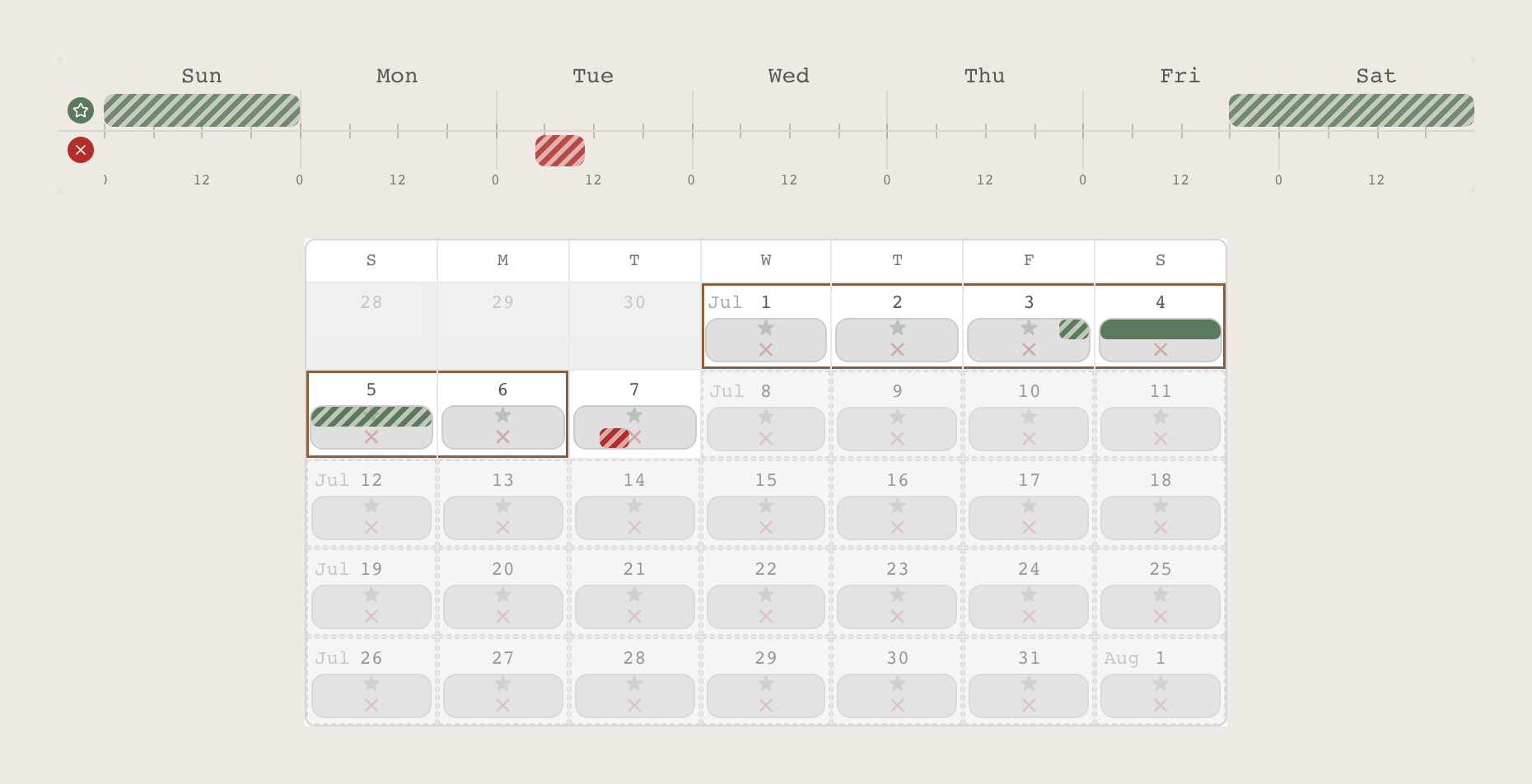
You marked the days that mattered (a wedding, a trip, your kid's recital) and BidVision found trips that worked around them. Or you prioritized the trips you liked and saw which days they fell on. It worked either way.
Your preferences, in your order
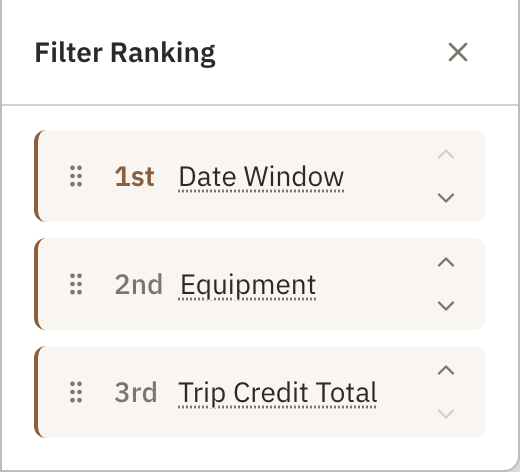
Every filter was a preference you could weight, not just a checkbox. You dragged them into a priority order and BidVision broke ties the way you would: your must-haves moved a trip further than your nice-to-haves.
Soft filters found hidden gems
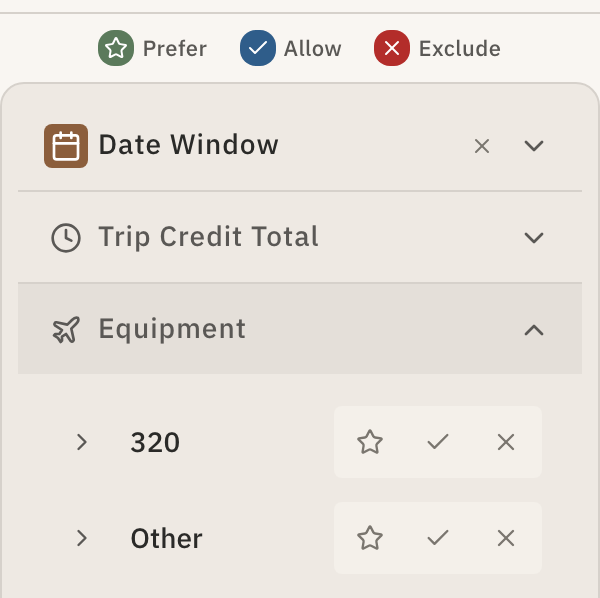
A hard yes-or-no filter hides everything else. BidVision let you prefer, allow, or exclude, so trips that almost matched still showed up, scored and ranked. You might have found a sequence you'd never have seen otherwise.
BidVision was a pre-bid research tool: something to explore your options with before the bidding window opened. If there's ever something new worth trying, I'll write.