Getting Started
The beta has ended, and there is nothing to download right now. This page is kept as a record of how BidVision worked.
BidVision turned your bid sheet into a ranked list of trips, sorted by what mattered to you. Here is how it worked, in five minutes.
1 Where your bid sheet came from
Bid sheets lived in Crew Portal. You opened Crew Portal and logged in first, then went to Departments → Crew Planning → Current Bid Sheets. (A direct link before you were logged in just landed you on the portal home.) You downloaded the PDF for the period you were bidding.
2 Loading your bid sheet
You opened BidVision and loaded that bid sheet PDF. Your bid sheets stayed on your device.
! The one thing to know first
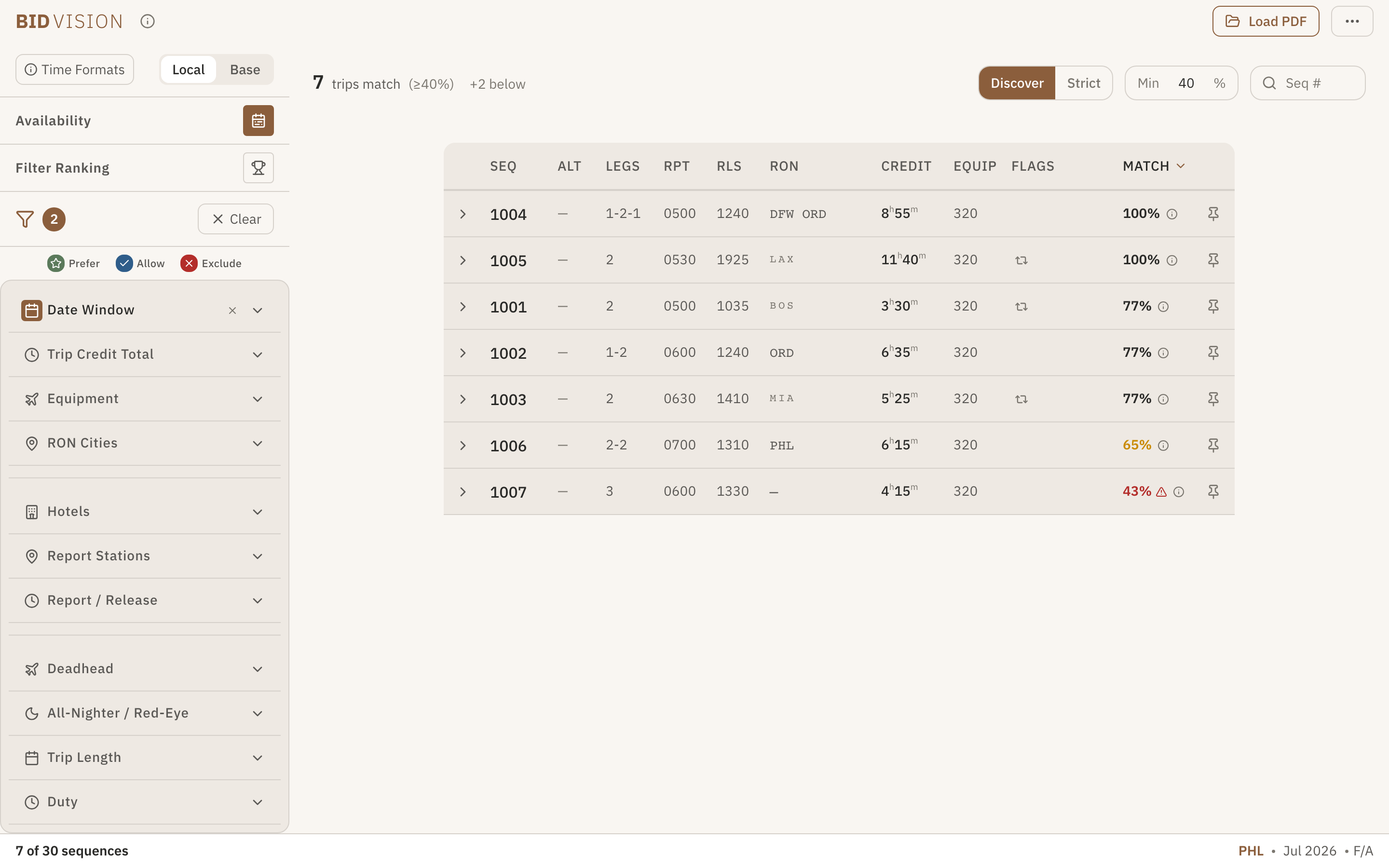
BidVision preferences were soft. They ranked trips: they didn't bid for you and they weren't PBS rules. Because they were soft, a great pairing just outside your rules still showed up, ranked, instead of vanishing, so you saw trips you'd never catch with a hard filter. "Exclude" meant "push this down my list," not "I'll never get it." You could set things up freely to explore; your actual PBS bid was still yours to write.
3 Setting your Availability: your week, then the month
The Availability tray had two connected parts.
Template Week: your recurring pattern
You dragged the time windows you could work (Prefer, green) and couldn't (Exclude, red) across a typical Sun–Sat week. These were time windows, not whole days, so you could say things like "Tuesday nights off" or "free Wednesday afternoon through Friday morning." This was your baseline. It carried across every bid, so you set it once.

Month calendar: this bid's actual dates
The calendar started pre-filled from your template. For any date that was different this month (a trip you were already covering, a one-off day you needed), you clicked it and adjusted. A change on the calendar overrode the template for that date only.
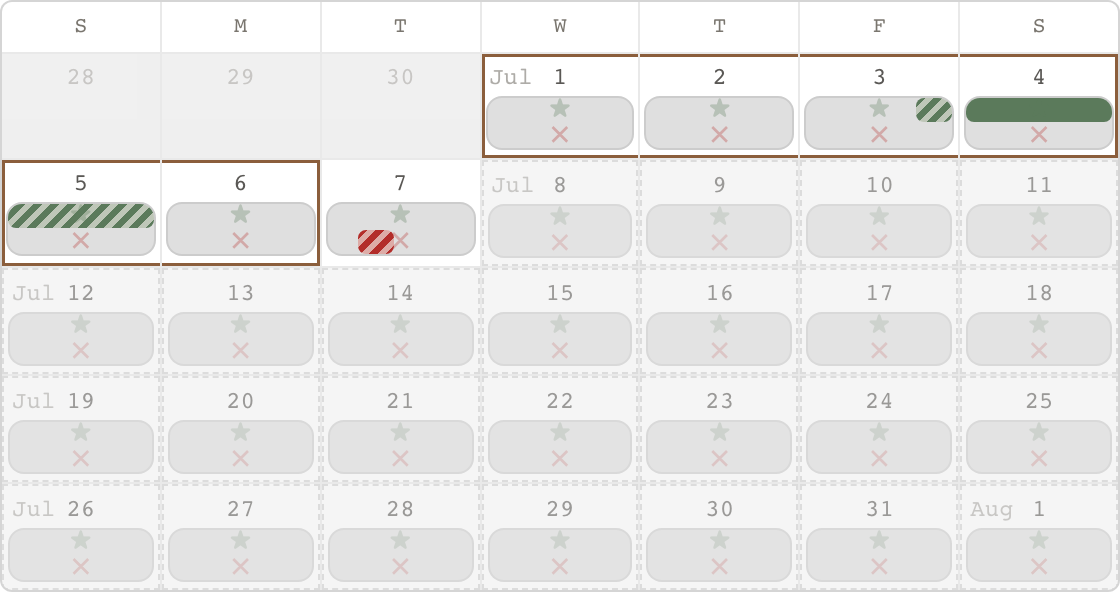
BidVision then scored every trip by how well it fit (by the hour, not just the day), so the trips that worked for your real schedule rose to the top.
4 Shaping the ranking with Prefer / Allow / Exclude
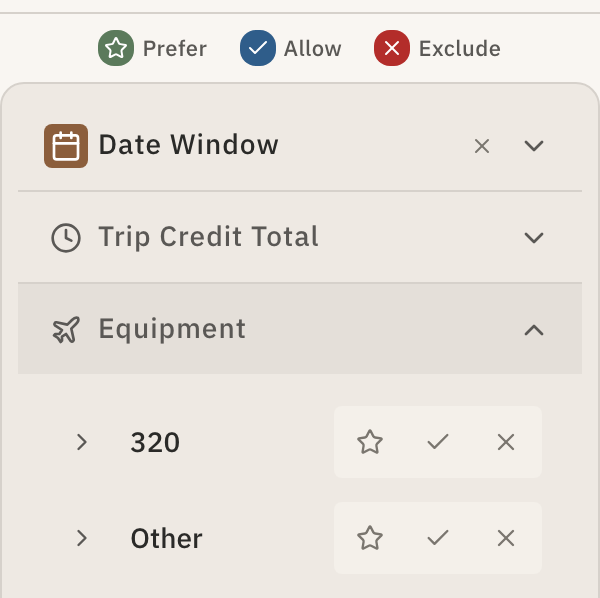
On any filter, you placed each option on a spectrum: Prefer = your ideal (pull it to the top), Allow = good with you (a lighter nudge up), left untouched meant neutral (no opinion either way), Exclude = a negative (push it down). With a few stacked, the list reordered to match how you actually thought about your month.
5 Filter Ranking: which preferences mattered most
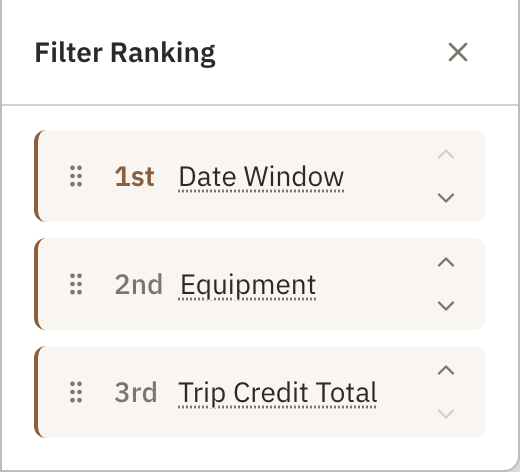
Once you'd set a few preferences, some mattered more than others. Filter Ranking let you drag your active filters into priority order, and BidVision weighted the scoring to match: your top preference moved trips further than the ones beneath it. It wasn't another filter; it was how BidVision broke ties when trips competed for the top of your list.
6 Discover vs. Strict
- Discover (default): showed all trips, ranked, with nothing hidden. This is where you caught the great trips that sat just outside your rules.
- Strict: a hard filter that hid trips that broke an Exclude. You used it when you knew exactly what you wanted.

7 Researching a trade (ETB / TTS)
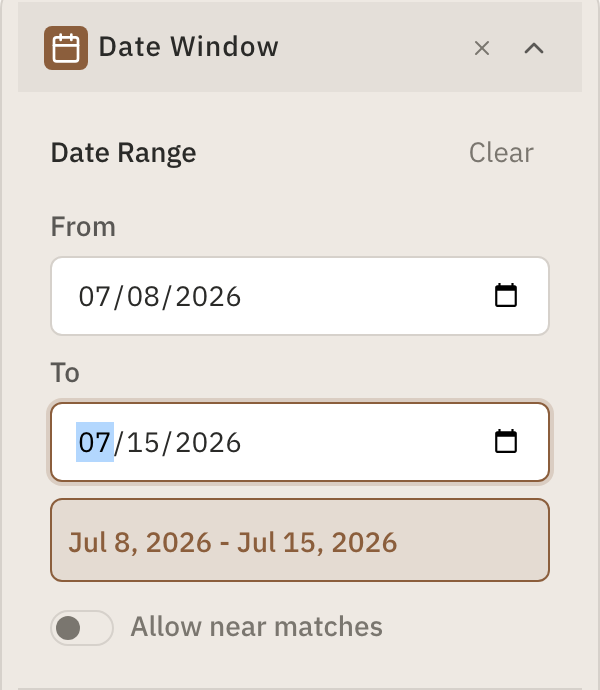
You used the Date Range filter to narrow to the specific days you were trying to cover, and BidVision surfaced every trip touching that window.
Your bid sheets stayed on your device
Bid sheets, availability and preferences were read on your device and never uploaded. The only things stored elsewhere are the name, email and base you typed into the signup form.
If there's ever something new worth trying, I'll write. You can keep me posted.